Calendly for Home Services: Setup Guide and When to Switch
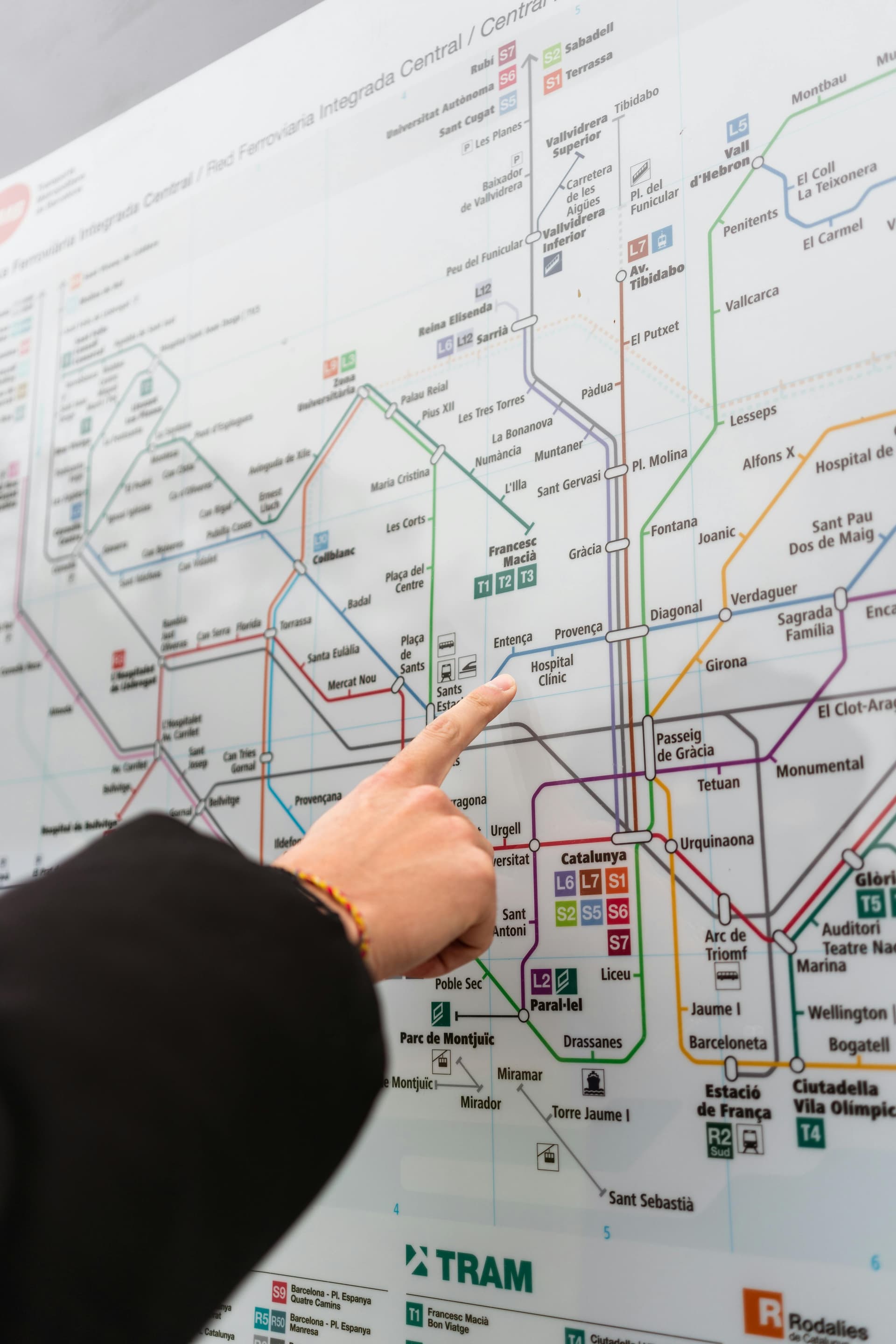

Sure, you can use Calendly for home service booking. You absolutely can. Your team will schedule appointments without the endless phone tag, and customers will appreciate the convenience of online booking. But here’s what nobody tells you: unless you get extremely lucky, your technicians are going to spend most of their day driving all over the map, wasting time, burning fuel, and getting frustrated. You’ll book more appointments, yes—but you’ll need to hire more salespeople and field techs just to compensate for the inefficiency.
Still interested? Let’s walk through exactly how to set up Calendly for a home service business. Fair warning: by the time you reach the end of this list, you’ll understand why so many contractors eventually abandon this approach.
The Setup Process: A Comprehensive Guide
Here’s every step you’ll need to follow to make Calendly work for home service scheduling:
- Create your Calendly account and choose a pricing tier that supports multiple event types (spoiler: you’ll need a lot of them).
- Map out your entire service area and divide it into geographic zones based on zip codes.
- Research and compile every zip code for each zone (one contractor we spoke with had 50 zip codes in a single zone).
- Create separate calendars for each geographic zone—typically 3–12 depending on your market.
- Set up routing logic in Calendly to direct customers to the correct zone calendar based on their zip code.
- Configure availability for each zone (e.g., Zone 1 on Mondays and Wednesdays, Zone 2 on Tuesdays and Thursdays).
- Create event types for each service you offer (consultation, installation, repair, maintenance, inspection, etc.).
- Create event types for different durations (30-minute, 60-minute, 90-minute appointments).
- Multiply service types by duration options by geographic zones—one contractor calculated needing 96 different event types just for installations and repairs.
- Set up buffer times between appointments to account for drive time (but remember, this is just an arbitrary guess).
- Adjust buffer times for each zone because driving across Austin isn’t the same as driving across a rural area.
- Create Zapier account to connect Calendly to your other systems.
- Set up Zap #1: Calendly to your CRM (Service Titan, Jobber, etc.).
- Set up Zap #2: Calendly to your phone system for text notifications.
- Configure email templates for booking confirmations.
- Configure SMS templates for booking confirmations (because Calendly’s native texts can’t be replied to).
- Set up reminder sequences since you can’t easily customize Calendly’s reminder system via Zapier.
- Create landing pages for each service type to make self-booking easier to find.
- Add self-booking buttons to your website (but make sure they’re prominent or customers won’t use them).
- Set up routing logic on your website to direct customers to the right Calendly event based on their needs.
- Create separate booking links for each event type to send to customers via text/email.
- Document all your routing logic because if you get hit by a bus, nobody will understand this system.
- Train your scheduling coordinators on which link to send for which situation.
- Create a massive spreadsheet tracking all your event types, zones, and corresponding links.
- Manually sync appointments from Calendly to your field service management software (or set up another Zap).
- Set up calendar integration with Google Calendar or Outlook to prevent double-booking.
- Configure working hours for each team member across all relevant event types.
- Update availability across all 96+ event types when someone takes a vacation.
- Create override events when you need emergency availability in a zone you don’t normally serve that day.
- Manually calculate drive times between appointments because Calendly doesn’t know about traffic or geography.
- Adjust your buffer times seasonally (Austin traffic during SXSW is different from summer).
- Create qualification questions to screen leads before they book.
- Set up conditional logic to prevent unqualified leads from booking (good luck with this in Calendly).
- Create a manual review process for questionable bookings that slip through.
- Set up a separate system to track which leads came from which source since Calendly’s tracking is limited.
- Build reporting dashboards in another tool because Calendly’s analytics won’t tell you about drive time waste.
- Create workarounds for recurring appointments since Calendly doesn’t handle maintenance contracts well.
- Manually upload recurring service lists and send individual booking links to 100+ customers each month.
- Follow up on non-responders who didn’t use their booking link.
- Manually book appointments for the 20% of customers who won’t use online booking.
- Create separate event types for emergency services with different availability windows.
- Monitor your technician routes daily to catch inefficient scheduling Calendly created.
- Manually reschedule appointments that got booked inefficiently to optimize routes.
- Call customers to reschedule because Calendly doesn’t have smart rescheduling logic.
- Deal with customer frustration when you have to reschedule their confirmed appointment.
- Set up 24/7 availability for emergency bookings (but good luck managing on-call schedules across multiple event types).
- Create a triage system to determine which appointments are urgent vs. routine.
- Manually prioritize appointments because Calendly can’t weight urgency vs. efficiency.
- Update your 96+ event types every time your service offerings change.
- Rebuild your entire zone structure if you expand your service area.
- Add a new team member? Update availability across dozens of event types manually.
- Set up integration with your phone system so customers can actually text you back (Calendly’s texts are one-way).
- Configure payment collection through yet another integration.
- Set up cancellation policies and figure out how to enforce them.
- Create a system to track no-shows since Calendly won’t tell you which zones or services have higher no-show rates.
- Calculate actual drive times post-appointment to see how much time was wasted.
- Manually input this data somewhere since Calendly doesn’t track it.
- Analyze which zones are inefficient and redesign them.
- Update all corresponding event types with new zone definitions.
- Hope your salespeople don’t quit when they realize they’re doing 2 appointments per day instead of 5 because of drive time.
- Hire more salespeople to compensate for the inefficiency.
- Hire more installers because they’re doing 2 installs per day instead of 4.
- Increase your overhead costs for all the additional labor.
- Pay for more gas as your team drives all over the map.
- Budget for additional vehicle maintenance from excessive driving.
- Accept lower margins because operational inefficiency is eating your profits.
- Spend hours each week managing and maintaining this Frankenstein system.
- Cross your fingers that Calendly doesn’t change their API and break all your Zapier integrations.
- Pray none of your Zaps hit their monthly task limits (surprise billing!).
- Live with the fact that you’re paying for Calendly + Zapier + your CRM + your phone system + whatever else you needed to make this work.
- Accept that this solution covers maybe 50% of your scheduling needs while creating new problems.
- Keep looking for a better solution because deep down you know this isn’t sustainable.
- Realize there has to be a better way.
The Reality: It’s Not That Calendly is Bad—It’s That It Wasn’t Built for This
Let’s be clear: Calendly is an excellent product for what it was designed to do—scheduling meetings between people who are sitting at desks. Sales demos, coaching calls, job interviews, consulting sessions. In those contexts, it works beautifully.
But home service businesses don’t operate in conference rooms. They operate in geographic space, where the distance between Point A and Point B matters enormously. Where a technician scheduled for jobs in opposite corners of the city has wasted 3 hours of billable time driving. Where ‘efficiency’ isn’t about calendar tetris—it’s about route optimization, drive time calculation, and geographic clustering.
Calendly doesn’t think like a scheduling coordinator for a home service business. It doesn’t know that booking someone in Round Rock at 9 AM and Downtown Austin at 10 AM is a disaster. It doesn’t care that your service area has traffic patterns that make certain times and routes unusable. It can’t weight whether speed-to-lead or route efficiency should be prioritized for different appointment types.
What You Actually Need
The above 76-step process isn’t an exaggeration. It’s based on actual contractors who tried to make Calendly work for their businesses. One generator installation company in Austin created 96 Calendly event types and still only covered half their scheduling needs. A window covering business had 12 geographic zones and spent hours each week manually managing availability across them all.
What these businesses actually needed was a scheduling system that thinks in geography, not just time slots. One that calculates actual drive times between appointments based on real routes and traffic. One that optimizes routes automatically instead of scattering appointments across the map. A system that handles service areas intelligently without requiring 50 zip codes per zone, manages different appointment types without requiring 96+ separate event configurations, and qualifies leads before booking to prevent wasted appointments.
They needed a platform that balances speed-to-lead with route efficiency based on appointment type, handles recurring maintenance without manual coordination of 100+ customers, provides two-way customer communication instead of one-way notifications, integrates with field service management without Zapier duct tape, tracks actual efficiency metrics like drive time waste and route optimization, and makes technicians more productive instead of requiring more hires to compensate.
The Driive Difference
Driive was built by people who ran a home service business and personally experienced the Calendly nightmare. The founder spent years trying to make generic scheduling tools work for window covering installation. He created 96 event types, managed 12 geographic zones, and still watched his team waste hours driving inefficient routes.
So he built what actually should exist: scheduling software that thinks like a field service coordinator.
Instead of 76 steps, Driive setup looks like this:
- Create your account.
- Define your service area (draw it on a map—done).
- Add your team members and their availability.
- Create your appointment types (consultation, install, repair, etc.).
- Set up your qualification questions.
- Start booking.
That’s it. Six steps instead of 76.
Behind those six steps, Driive is automatically calculating real drive times between every appointment, optimizing routes so technicians aren’t zigzagging across town, clustering appointments geographically when route efficiency matters, prioritizing speed-to-lead when urgency matters more than efficiency, recommending optimal appointment times based on your algorithm preferences, handling recurring maintenance without manual coordination, enabling two-way customer communication, and syncing with your existing field service management tools.
Real Results from Real Contractors
The generator installation company that had 96 Calendly event types? After switching to Driive: they went from 2–3 appointments per salesperson per day to 5+, eliminated the need to hire additional salespeople, dramatically reduced drive time and fuel costs, could finally compete with competitors who answer phones at midnight because instant online booking gave them speed-to-lead advantage, and 30–40% of appointments now book via link (even with older demographics).
The window covering business? They went from needing to hire a fifth scheduling coordinator to automating the entire process while actually improving route efficiency.
One contractor summed it up: ‘Oh my goodness, Driive is such a time saver. It’s literally like night and day.’
The Bottom Line
Yes, you can use Calendly for home service booking. You absolutely can follow all 76 steps above, manage 96+ event types, accept that your team will drive inefficient routes, and hire additional people to compensate for the waste.
Or you can use a tool actually built for home service businesses that solves the problem in 6 steps instead of 76.
Calendly works great for scheduling Zoom calls. Driive works great for scheduling technicians who need to physically show up at customer locations without wasting half their day in traffic.
The choice is yours. But if you just spent the last 10 minutes reading this list and thinking ‘there’s no way I’m doing all that,’ you’re exactly the contractor Driive was built for. Because home service scheduling shouldn’t require 76 steps, 96 event types, and a PhD in Zapier integration just to avoid having your team drive all over the map.
Ready to Simplify Your Scheduling?
Driive handles everything Calendly can’t: geographic optimization, intelligent route planning, drive time calculation, service area management, and appointment qualification—all built specifically for contractors, by contractors who’ve lived this pain.
Skip the 76 steps. Start with the 6 that actually work.
Ready to transform your booking?
Join hundreds of field service teams already using Driive to win more jobs, reduce drive time, and automate their booking.